EN FR

Guide

Everything Pictrd does, in nine short stops.

Not a manual: a tour. Each stop shows what a feature is for and how it feels. The details live in the app, one keystroke away.

Start

From keyframes to a finished board in one sitting.

Open Pictrd, click New project, give it a name. Pick one of your templates if you have any, and the board arrives already dressed: your name, your logos. Add a scene with one, two or three images, drop the keyframes into the frames, type. That's the whole workflow.

Everything is saved as you go. There is no Save dialog to remember, only ⌘S if you like the feeling.
The page is the editor

What you see is what the client gets.

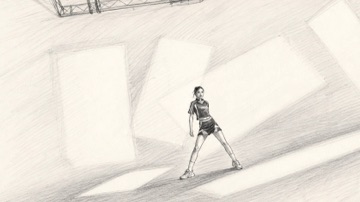
There is no preview window in Pictrd, because there is nothing to preview: you write directly on the A4 page, in the columns of the printed layout. Action, dialogues, SFX, camera and lens sit under each image, at their final size, with their final fonts.

Pages flow one after the other, like the PDF they will become. Scroll, click a scene in the list, and you are there.

Sequences & scenes

A list that keeps the whole film in view.

To the right of the pages, the Sq & Sc list shows every sequence and every scene. Click one to jump to its page. Drag to reorder: the numbering follows. Rename in place, add a sequence at the bottom.

Tick scenes and use Batch settings to give them all the same camera and lens in one move. The list works entirely from the keyboard too.

Batch import

Name your files, drop the folder, done.

A folder of images named Sq01Sc06.jpg becomes a story board: sequences and scenes are created in the right order and every image lands in its place. Sq01Sc06-02.jpg is the second image of a scene (up to three). Spaces, underscores, capitals and a prefix are tolerated; a leading zero is optional.

The report tells you what was imported, what was replaced (texts are kept) and which files were set aside, with the reason. One ⌘Z undoes the whole import. Tip: the Finder's Rename › Format › Name and Index renames a whole sequence in seconds.

Templates

Your name and logos, saved once.

A template keeps an author and two logos, one for white pages and one for black pages. Choose it when you create a project, or apply it later from Project settings. The board keeps its own copy, so it travels on its own, to another Mac or to a client.

Made a board you like? Save it as a template from the File menu, name it, and it's ready for the next one.

Cameras & lenses

1,800 references, found as you type.

ARRI, RED, Sony, Blackmagic, Canon, Nikon, Fujifilm for cameras; Zeiss, Cooke, Sigma, DZOFilm, Laowa and many more for lenses, each with its focal length and aperture. Type a few letters, pick, done. Your own gear is one click away and remembered on this Mac. Hide what you never use.

Keyboard shortcuts

Hands on the keys, eyes on the board.

Every action has a shortcut, listed in App settings › Keyboard shortcuts. Tab moves from field to field, image after image. ⌘Z undoes anything, even a deleted sequence. ⌘F finds a word anywhere in the board. And every shortcut can be changed: click it, type the new one.

On Windows, Ctrl takes the place of ⌘: Ctrl+Z, Ctrl+F, Ctrl+P.

PDF export

Ready for the client, light enough to email.

⌘P, choose where, done. Pages are vector, fonts embedded, images compressed: a 12-page board weighs a few megabytes. Each sequence can be printed on white or on black, with the matching logo. Only need part of the board? Tick scenes or a whole sequence and export just those. The PDF opens in Preview as soon as it's written.

On set

Your board in your pocket, by AirDrop or by email.

File › Send to iPhone and iPad, or the row in the sidebar: Pictrd builds a light copy of the board — the pages, the texts, the images at screen size — and hands it to AirDrop, to Mail, or saves it as a file. Nothing to set up, no account.

On the iPhone, the free Pictrd app opens it: one scene per screen, white or black like the page, and the whole page on iPad. Send the board again and the copy is replaced. The app is on its way to the App Store.